How to use SiteQuote
Everything you need to set up your instant-estimate page, share it, and turn homeowner requests into jobs. Each section shows the real screen, so you know exactly where to click.
Get started in 10 minutes
Do these five things on day one and your page is ready to bring in leads.
- Start your free trial at sitequote.net. It's 14 days free with the lead limit of the plan you pick, and no card is needed to start.
- Add your business details and logo in Settings → Business & Branding (how).
- Pick your link name in Settings → Estimate Page & QR Code (how).
- Test your page like a homeowner: open your link on your phone and price a job (what they see).
- Share it: text it to past customers, post it on Facebook and your Google Business Profile, and print the QR code for your truck and flyers.
On a phone, you can add SiteQuote to your home screen and it opens like an app. Nothing to install.
Your dashboard
The first screen you see after logging in. It shows how your page is doing this month and who needs a call.
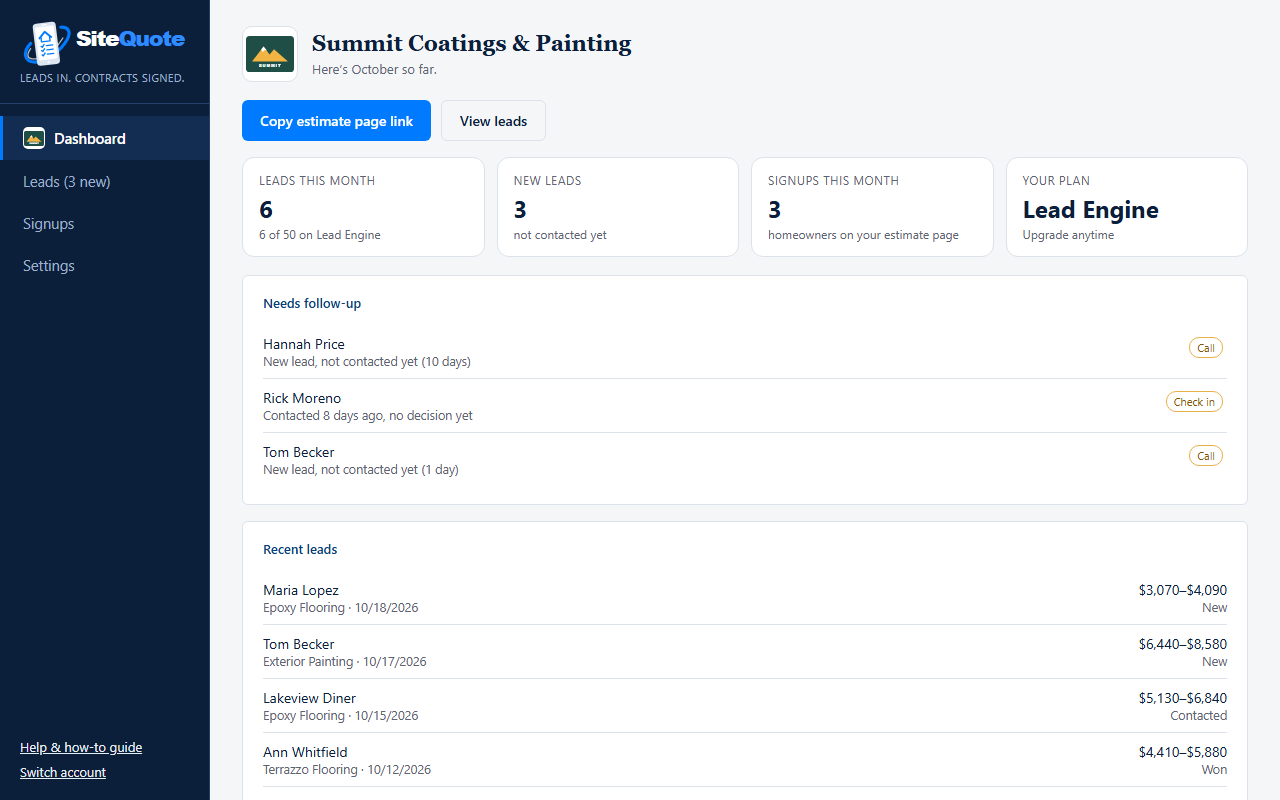
- Copy estimate page link copies your page address so you can paste it into a text or post.
- The four boxes show leads this month (and your plan's limit), new leads you haven't contacted, homeowners who signed up on your page, and your plan.
- Needs follow-up lists new leads you haven't called and contacted leads with no decision yet, oldest first. Work it top to bottom.
- Recent leads shows the latest requests with the price range each homeowner saw.
Your business details
Settings → Business & Branding. This is how homeowners see you on your page and in emails.
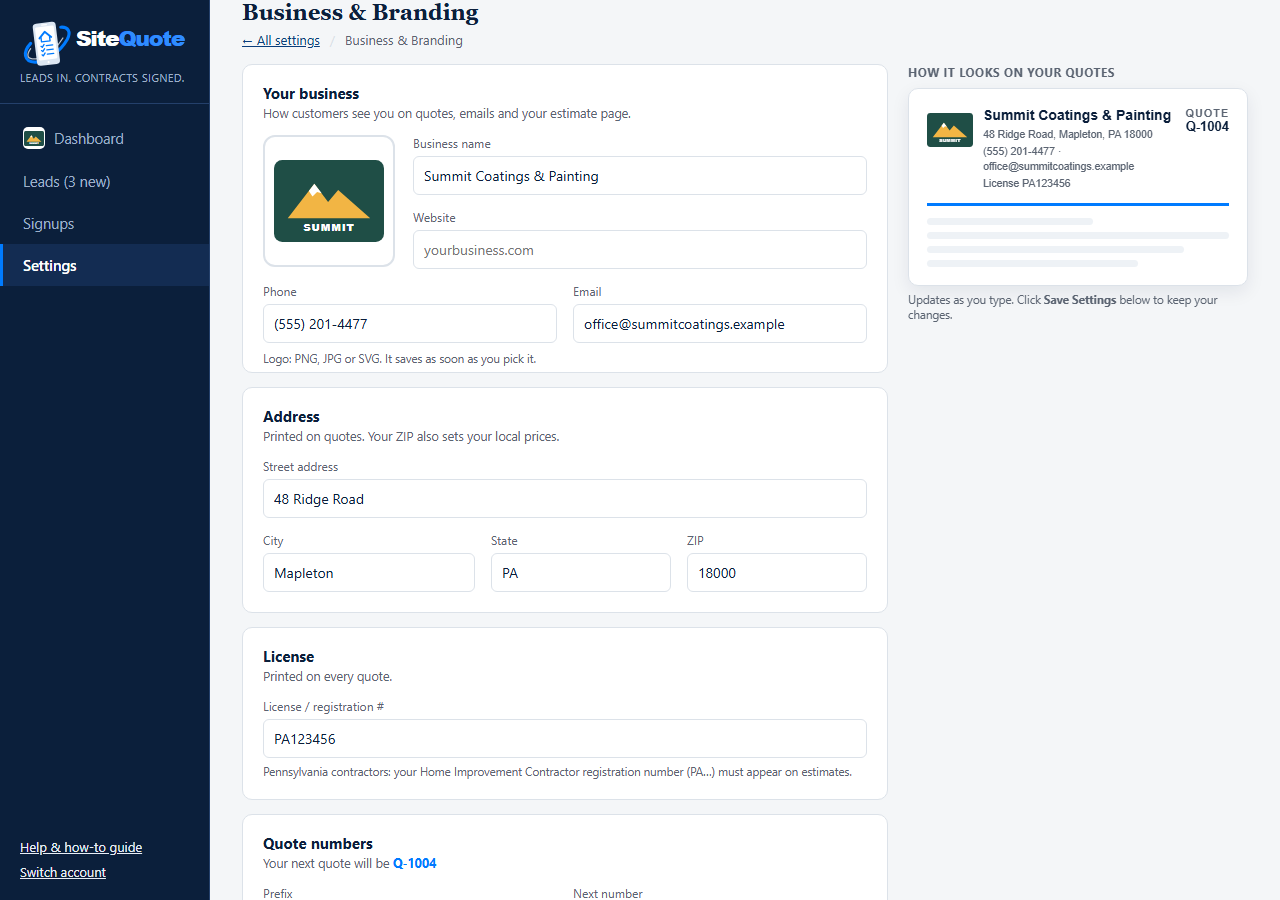
- Add your logo. Click the logo box and pick a PNG, JPG or SVG file. It saves as soon as you pick it.
- Fill in your name, phone, email and website.
- Add your address. Your ZIP code also sets your local market prices.
- Add your license number. Pennsylvania contractors: your Home Improvement Contractor registration number (PA…) must appear on estimates.
- Click Save Settings at the bottom.
On Lead Engine and Lead Machine, your logo also shows on your estimate page.
Your estimate page & QR code
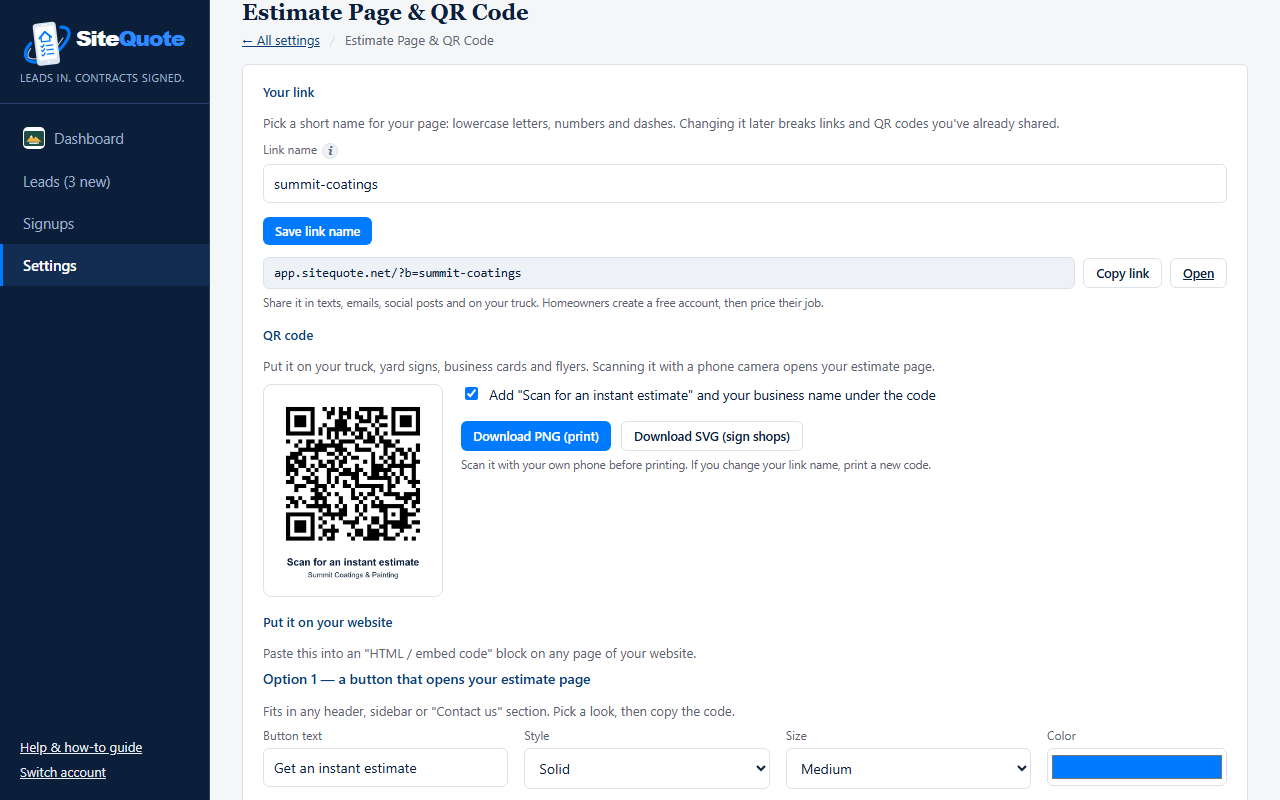
Settings → Estimate Page & QR Code. Your page is where homeowners get an instant price and ask you for a quote.
Pick your link name
- Type a short name: lowercase letters, numbers and dashes, like
smith-painting. - Click Save link name. Your page address appears below it, for example
app.sitequote.net/?b=smith-painting. - Click Open to see your page, or Copy link to share it.
Print your QR code
Scanning the code with a phone camera opens your page. Put it on your truck, yard signs, business cards and flyers.
- Download PNG (print) for flyers, cards and anything you print yourself.
- Download SVG (sign shops) for truck wraps and signs. Sign shops can scale it to any size without blur.
- Leave the box ticked to add "Scan for an instant estimate" and your business name under the code.
Put it on your website Lead Engine & Lead Machine
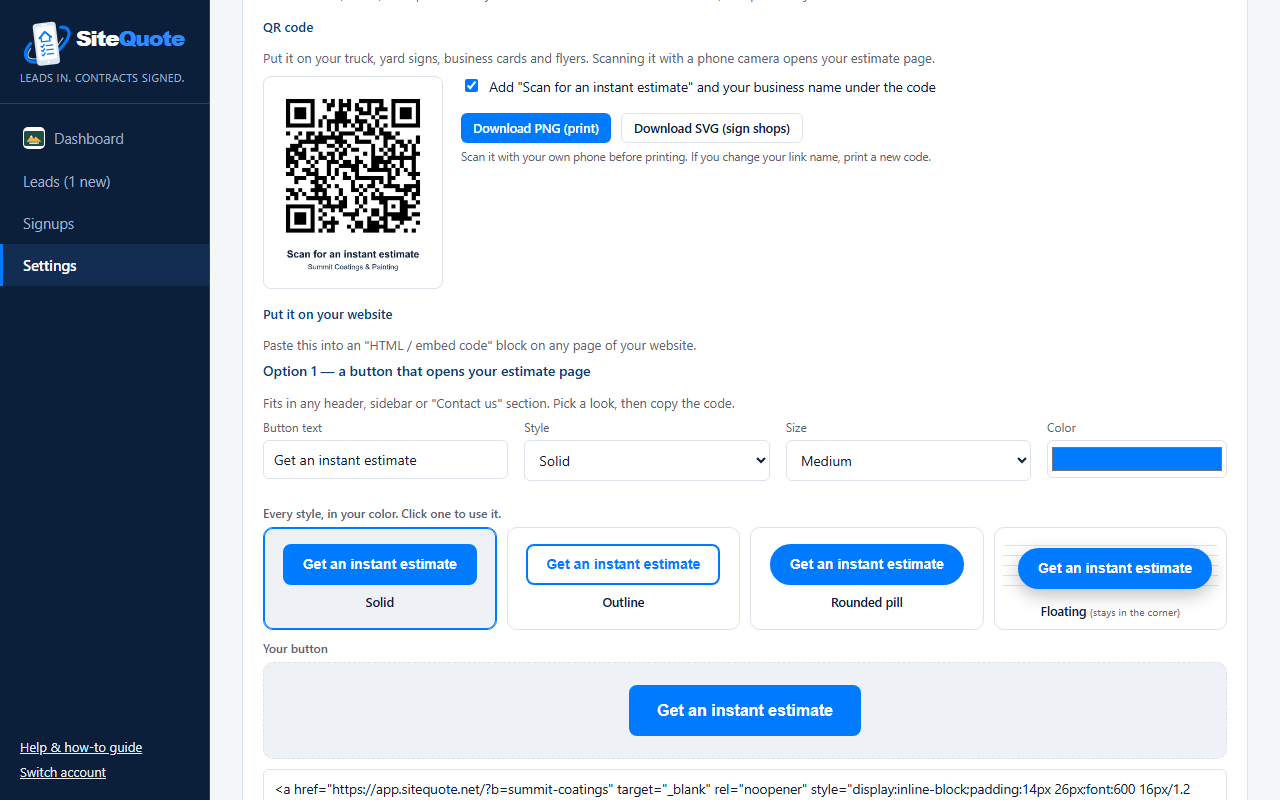
- Choose the button text, style, size and color. Click a style to use it.
- Copy the code under Your button.
- In your website builder, add an "HTML" or "embed code" block where you want the button, and paste the code.
There's also an option to put the whole estimator right on your website page instead of a button.
What homeowners see
Open your own link on your phone and try it, so you know what your customers go through.
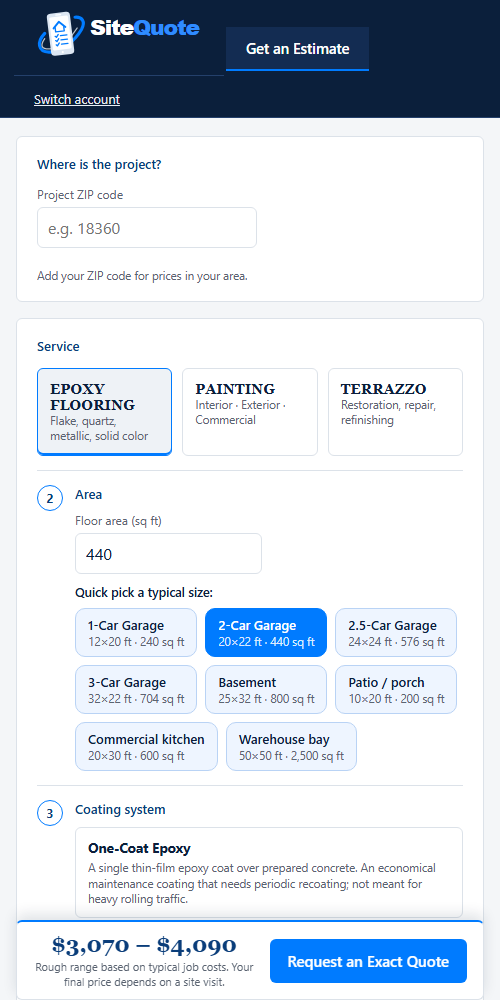
- The homeowner creates a free account on your page.
- They enter the project ZIP code and pick a service: epoxy flooring, painting or terrazzo.
- They answer a few plain questions (size, system or paint quality, condition). The price range at the bottom updates as they go.
- When they're ready, they tap Request an Exact Quote, pick times they're free for a visit, and send it. That request becomes your lead.
Homeowners only ever see a price range, never your rates. The visit times they pick are requests; you call to confirm.
Working your leads
The Leads page lists every homeowner who asked for an exact quote. Each lead goes to you alone; it's never shared with other contractors.
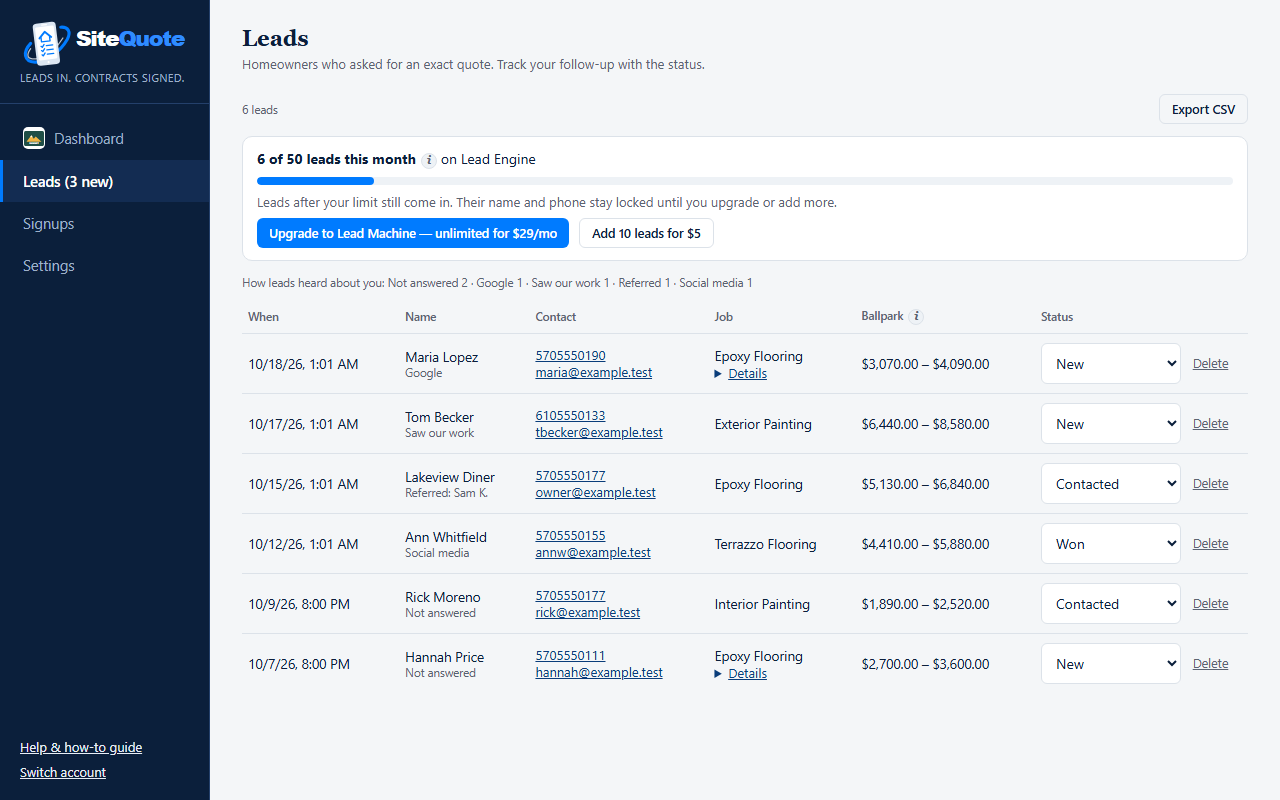
What each column means
| Column | What it shows |
|---|---|
| When | When the request came in. |
| Name | The homeowner, and under it how they heard about you. |
| Contact | Phone and email. Tap either to call or email straight from your phone. |
| Job | The service. Click Details to see everything they entered: size, system, condition and visit times. |
| Ballpark | The price range they saw on your page. |
| Status | Where the lead stands. Change it as you go. |
Keep the status up to date
- New: just came in. Call as soon as you can, while they're still thinking about the project.
- Contacted: you've reached them and a decision is pending.
- Won or Lost: the outcome. This keeps your dashboard's follow-up list clean.
You get an email alert for every new lead, plus a morning email listing anyone you haven't called yet. Click Export CSV to download your leads to a spreadsheet.
Lead limits and locked leads
Each new request counts as one lead toward your monthly limit (15 on Lead Spark, 50 on Lead Engine, unlimited on Lead Machine). The bar at the top shows where you are.
Nothing is lost if you go over. New requests still come in, but the homeowner's name and phone stay hidden until you upgrade or click Add 10 leads for $5. Extra leads you buy stay on your account until you use them; unused monthly leads don't carry over.
Signups
Homeowners who created an account on your page, newest first, including the ones who haven't asked for a quote yet.
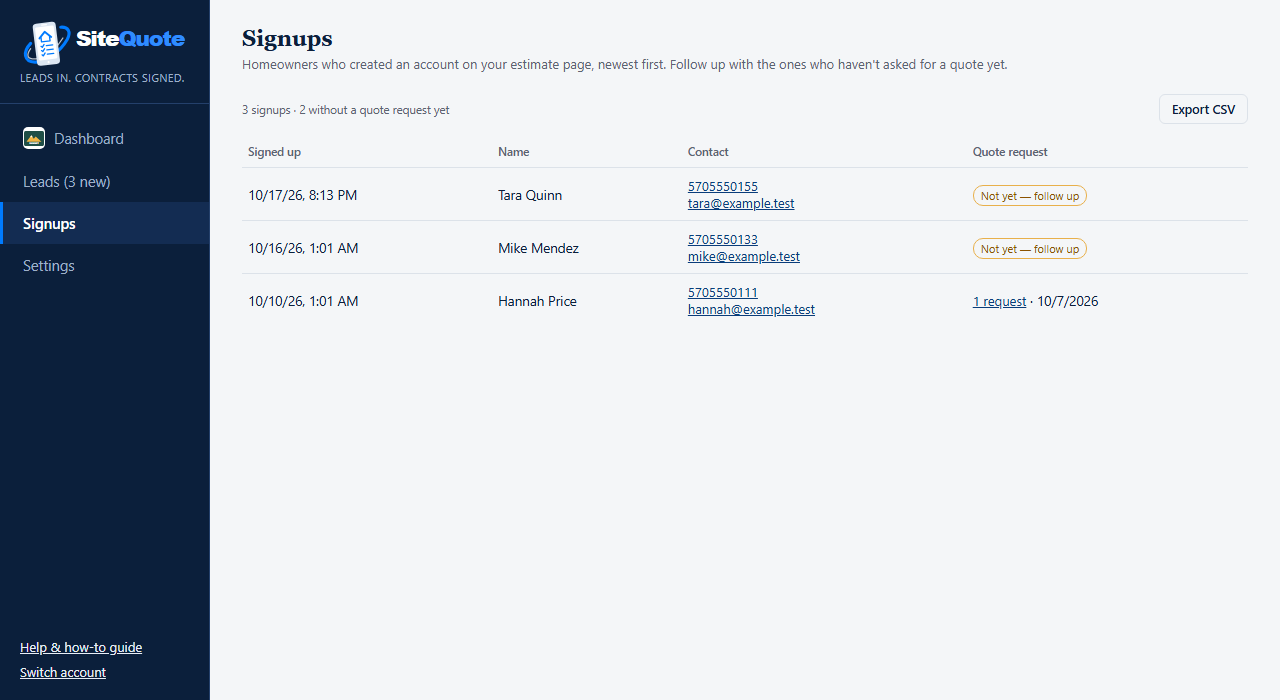
These are warm prospects: they were curious enough to price their job. A short, friendly call or text ("Saw you priced a garage floor, any questions?") often turns them into a lead.
Plan & billing
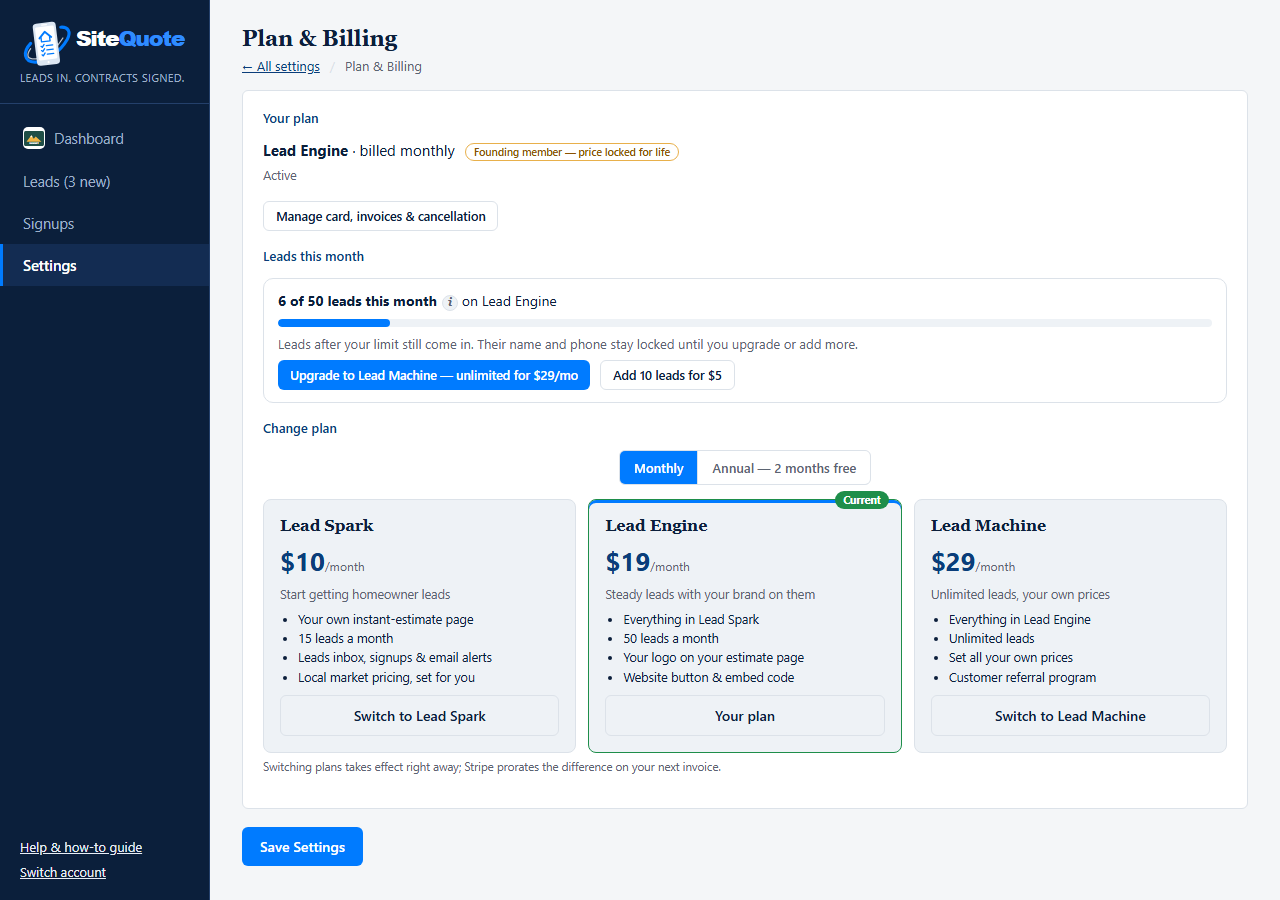
Settings → Plan & Billing: your plan, this month's leads, and switching plans.
| Plan | Price | What you get |
|---|---|---|
| Lead Spark | $10/month | Your instant-estimate page, 15 leads a month, leads inbox, signups and email alerts, local market pricing set for you. |
| Lead Engine | $19/month | Everything in Lead Spark, 50 leads a month, your logo on your page, and a website button and embed code. |
| Lead Machine | $29/month | Everything in Lead Engine, unlimited leads, your own prices, and a customer referral program. |
- Annual billing gives you 2 months free.
- Manage card, invoices & cancellation opens your secure billing page, where you update your card, download invoices or cancel. No phone call needed.
- Switching plans takes effect right away. If you cancel, you keep your page and leads until the end of the period you've paid for.
Team logins
Settings → Team: give your office or crew their own login.
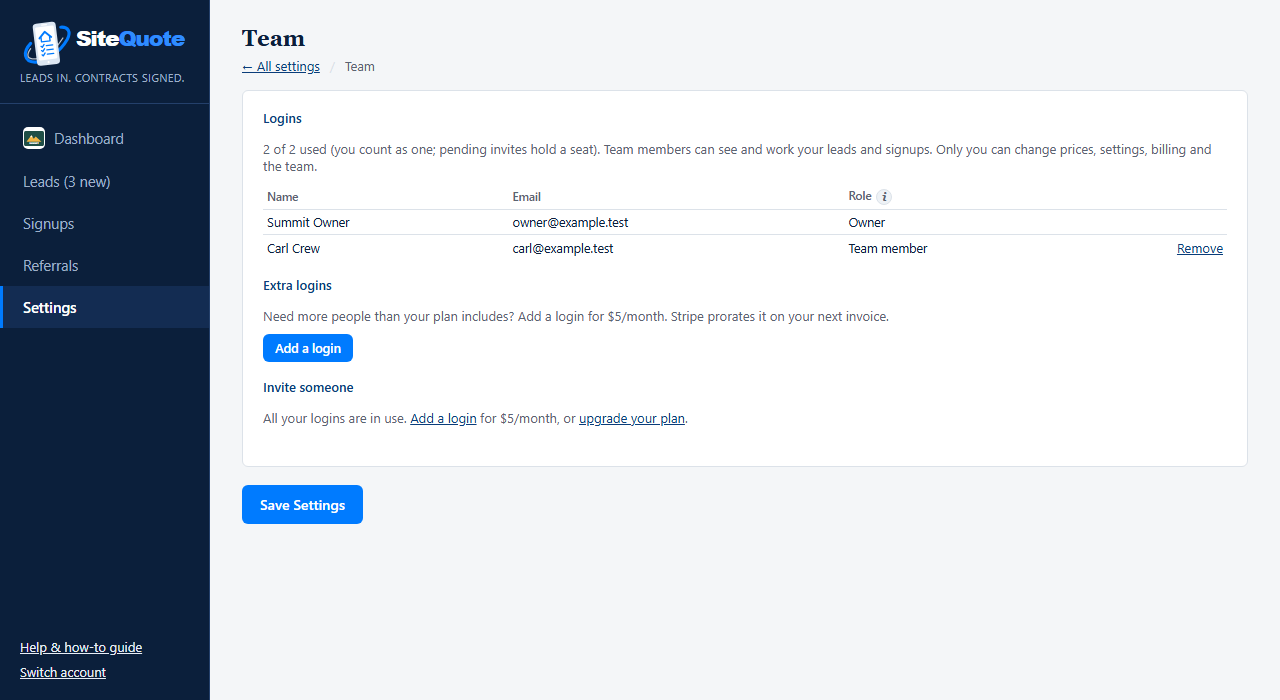
- Team members can see and work your leads and signups.
- Only you, the owner, can change prices, settings, billing and the team.
- Need more people? Click Add a login for $5 a month each, then send an invite by email link.
Your own prices Lead Machine
On Lead Spark and Lead Engine, your page uses SiteQuote's researched market prices, adjusted for each job's ZIP code, with nothing to set up. On Lead Machine you can set every price yourself.
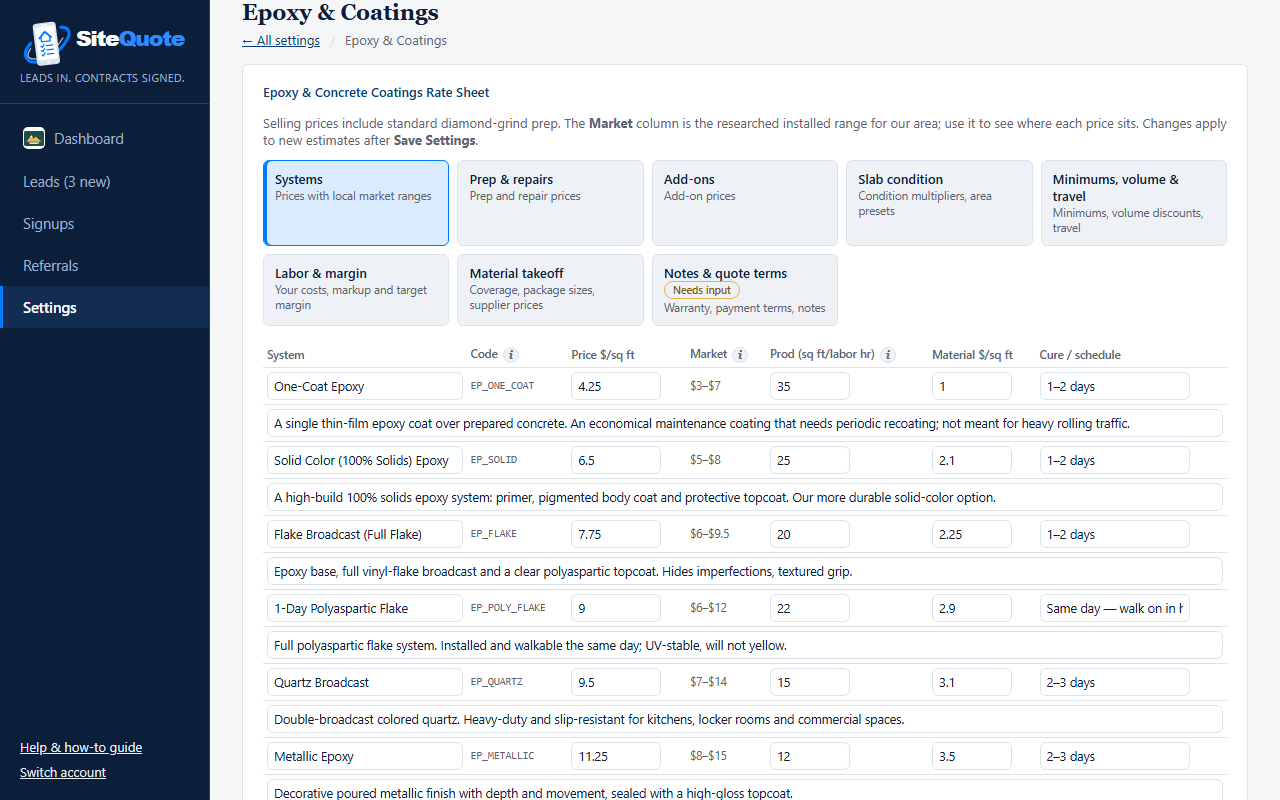
- Open Settings → Painting, Epoxy & Coatings or Terrazzo.
- Change the Price column. The Market column shows the researched installed range, so you can see where your price sits.
- Click Save Settings. New homeowner estimates use your prices right away.
Referral program Lead Machine
Reward customers who send you new jobs, and track every referral from first contact to payout.
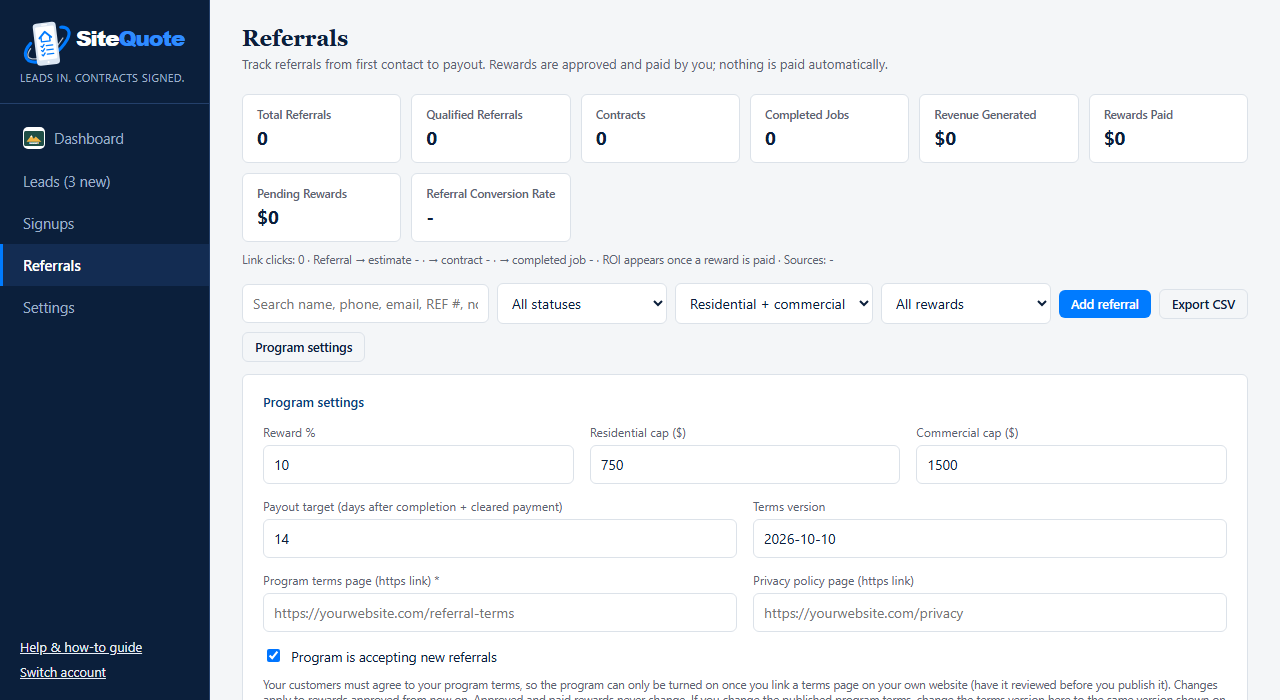
- Click Program settings and set your reward percent and the most you'll pay for a residential and a commercial job.
- Add a link to your referral program terms on your own website. The program only turns on once that link is set. Have the terms reviewed before you publish them.
- Track each referral's status as it moves to a contract and a completed job.
Rewards are approved and paid by you. SiteQuote never pays anything automatically.
Questions & help
My QR code doesn't open my page
Did you change your link name after printing? Then download and print a new code. Otherwise, make sure the code is printed large enough (at least 1 inch square) and not on a glossy, reflective surface.
I'm not getting lead emails
Check your spam or promotions folder and mark the email "not spam". Make sure the email in Business & Branding is correct. Your leads are always on the Leads page, even if an email goes astray.
I can't see a lead's name or phone
You've reached your plan's monthly limit. Upgrade or add 10 leads for $5 on the Leads page and the details appear.
Can I write and send quotes in SiteQuote?
Not yet. The full estimating plans, with on-site quoting, branded PDF quotes, online approval and a profit view, are coming soon.